

Editor
The app view — inspect your apps, read their logs and change how they deploy.
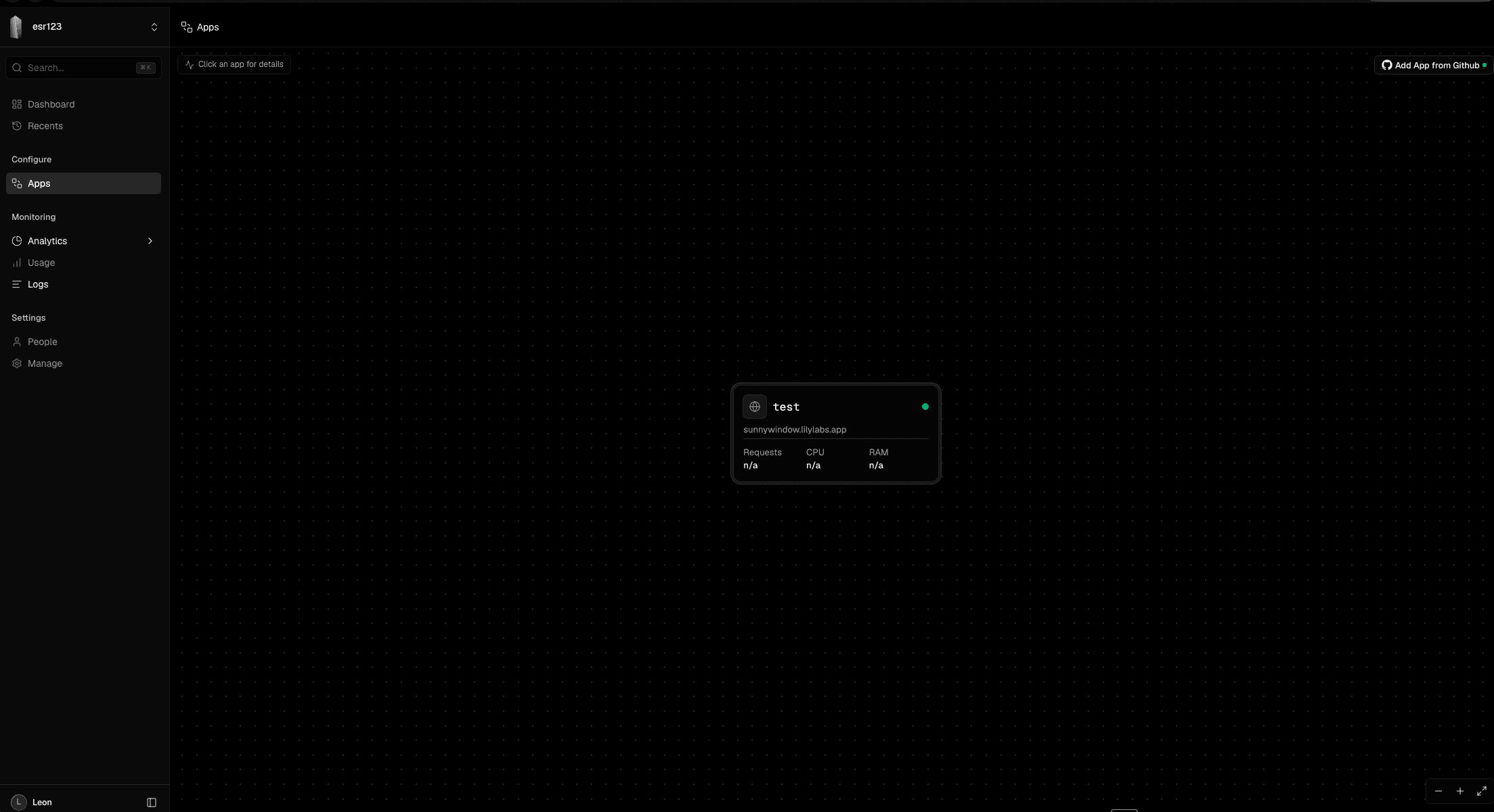
Opening a project puts you in the editor. It is the working view of the platform: a canvas holding the apps and databases that belong to the project, with everything you can inspect or change reachable from there.
The canvas
Each app sits on the canvas as a card showing its name, the domain it is reachable under and its current request, CPU and RAM figures. A green dot means the app is live. A freshly deployed app has no usage data yet, so those figures stay empty until traffic arrives. The canvas can be zoomed and panned, which matters once a project holds more than the one app it was created with.
Add App from Github in the top right adds a further app to the same project, following the same repository-and-name flow as the initial deployment.
The sidebar on the left carries the project switcher at the top and splits the rest into what you configure, what you monitor and what you administer — analytics, usage and logs for the whole project sit under Monitoring, while People and Manage hold project-level settings.
App details
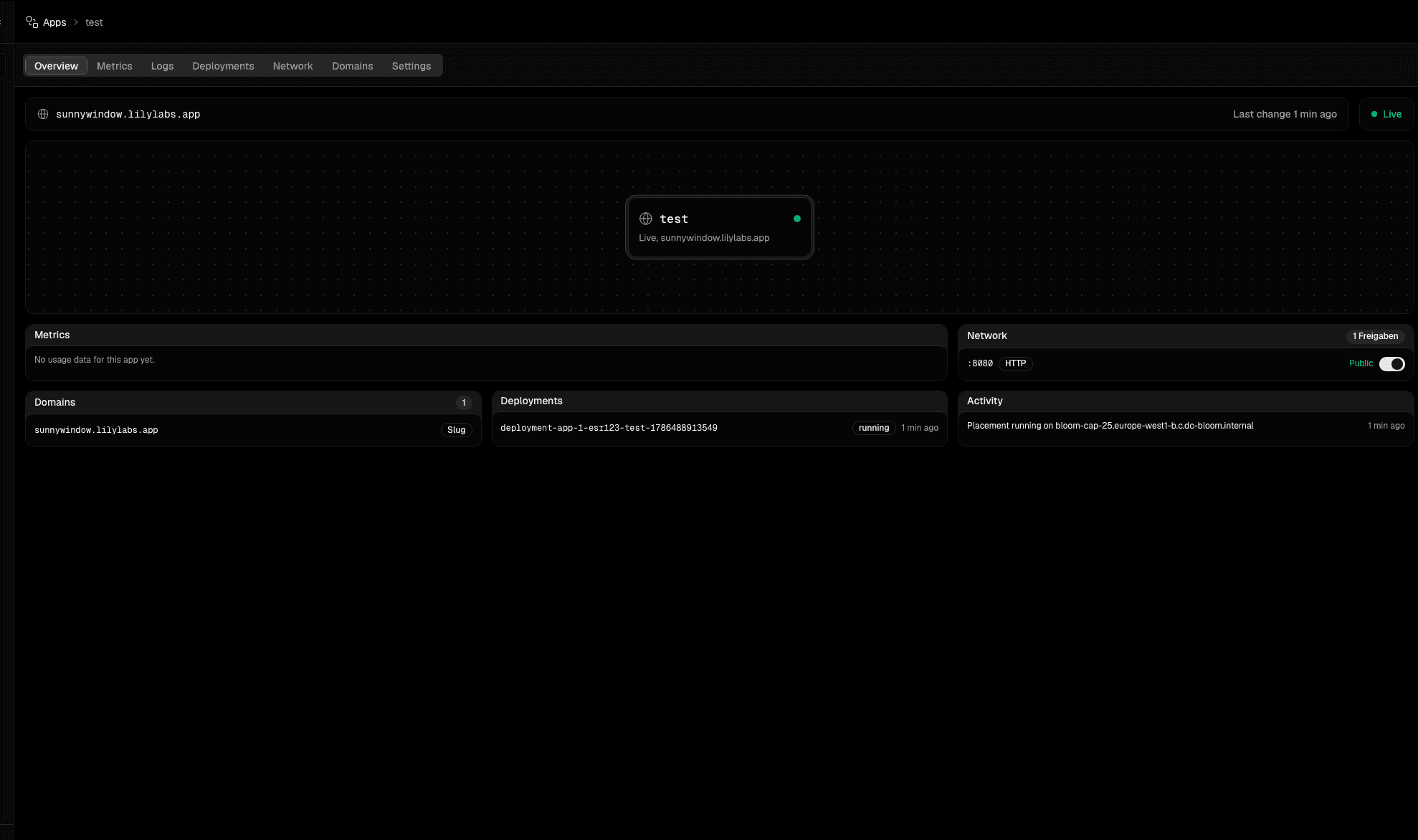
Clicking a card opens the app itself, with the slug domain, the time of the last change and the live indicator pinned to the top. Seven tabs divide the app up: Overview, Metrics, Logs, Deployments, Network, Domains and Settings.
Overview is a summary of the other six. It tells you which port the app listens on and whether it is publicly reachable, which domains point at it, which deployment is currently running, and — under Activity — which machine the app was placed on.
Logs
The Logs tab shows the output of your application, grouped by the host it runs on, with a search field to narrow it down and a refresh to pull the latest lines.

Logs are off by default
Log collection is a switch under Settings. Until it is enabled the tab stays empty, and once it is on, lines are kept for seven days.
Settings
Settings is where the app is configured, in four blocks.
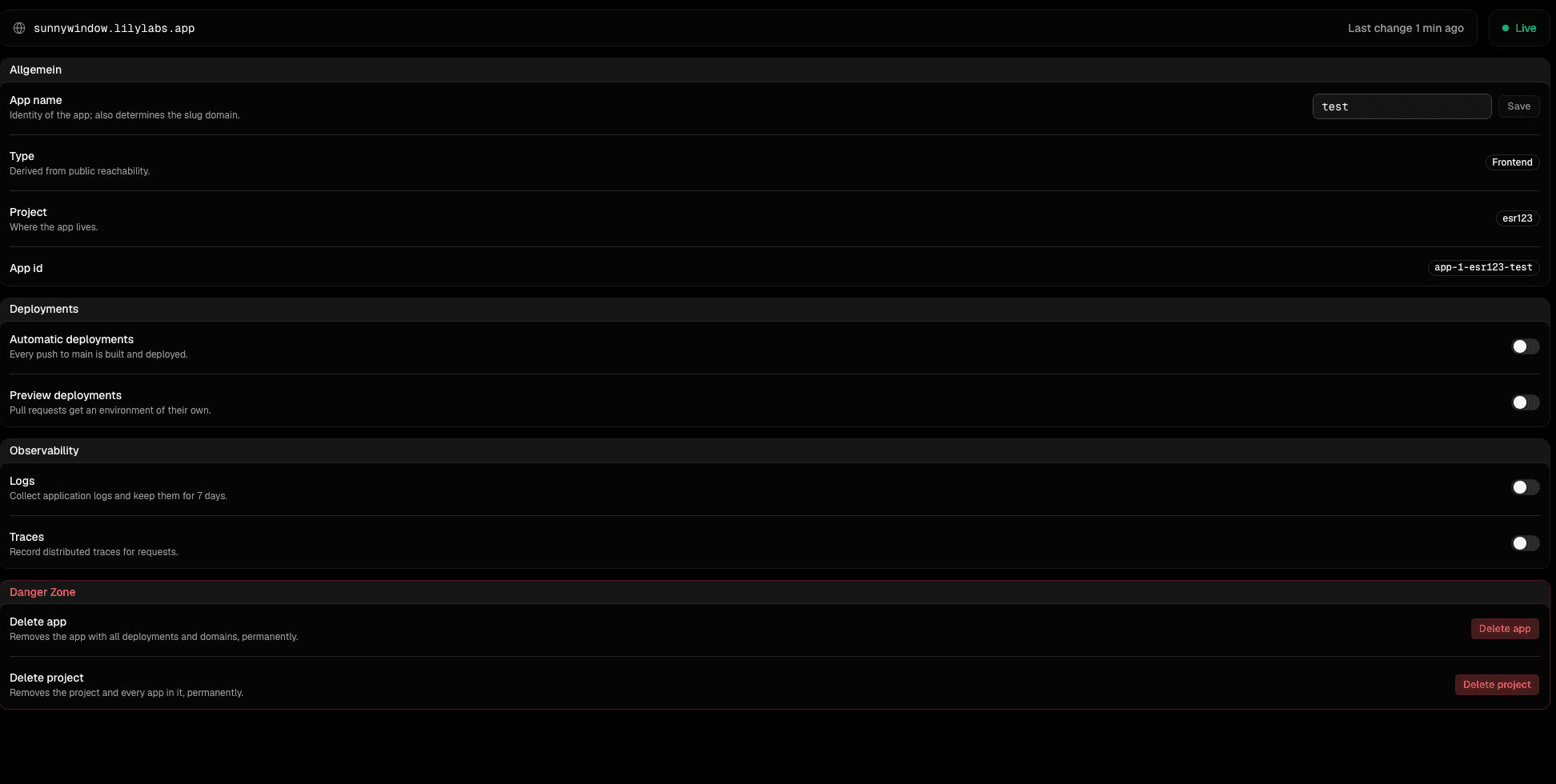
General holds the app name, the project it lives in and its app id, along with its type — frontend or otherwise — which is derived from whether the app is publicly reachable rather than set by hand.
Deployments controls how new code goes live. Automatic deployments build and release every push to main; preview deployments give each pull request an environment of its own. Both are off unless you turn them on, so by default nothing deploys without you.
Observability switches on log collection and distributed request traces.
Danger zone
The last block deletes things, and neither action can be undone. Deleting the app removes it along with all of its deployments and domains; deleting the project removes the project and every app inside it.